
 Job Note Optimizer
Write it like a tech. Send it like a report.
Job Note Optimizer turns the shorthand AV techs type or dictate on site, at an install or a live show, into your company's report format. It asks about anything unclear, then hands the office a PDF and a customer-ready email.
hung 6 pendants in community rm. mic 3 dead swapped w spare from truck. TP4 no hdmi - hdcp? need lbl rack 2 tmrw. used 2 cat6 jumpers
Work performed
- Hung six pendant speakers in the community room.
- Replaced ceiling mic 3 with a spare.
Issues found
- Mic 3 failed on test.
- No HDMI at touch panel 4, likely HDCP.
Materials used
- 2 × Cat6 patch cables
Follow-up
- Label rack 2 tomorrow.
Question for the tech Which source was connected when touch panel 4 had no HDMI?
Subject Installation Report: Riverside Library – Oct 14
Hello,
Here's a summary of the work completed at the community room on Wednesday, October 14, 2026.
Job number: J-2417
Work Performed
Hung six pendant speakers in the community room. Replaced ceiling mic 3 with a spare.
…
How a note gets from the job site to the office
-
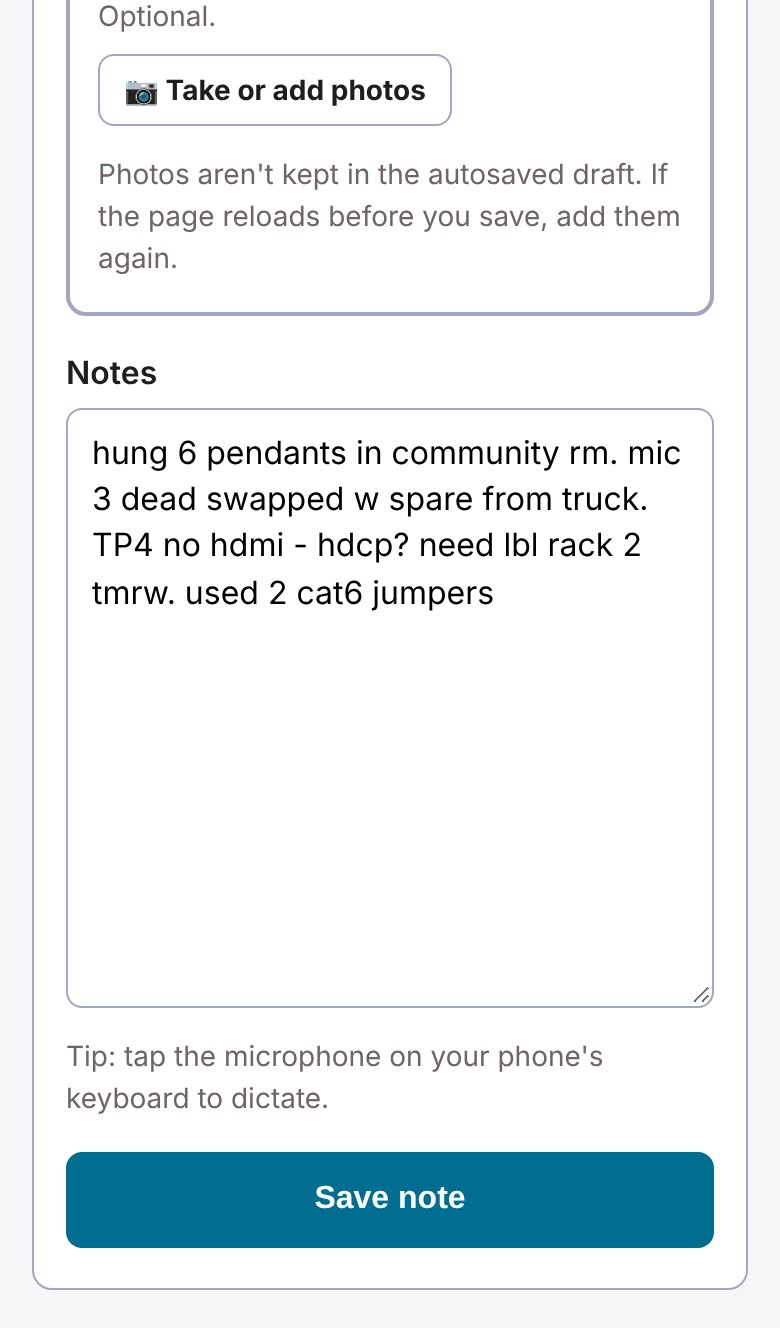
Write it on site
Type or dictate on your phone. Job number, start and end times, lunch, crew and photos go in the same form. The draft saves on the phone, so a dropped signal doesn't lose anything.
-
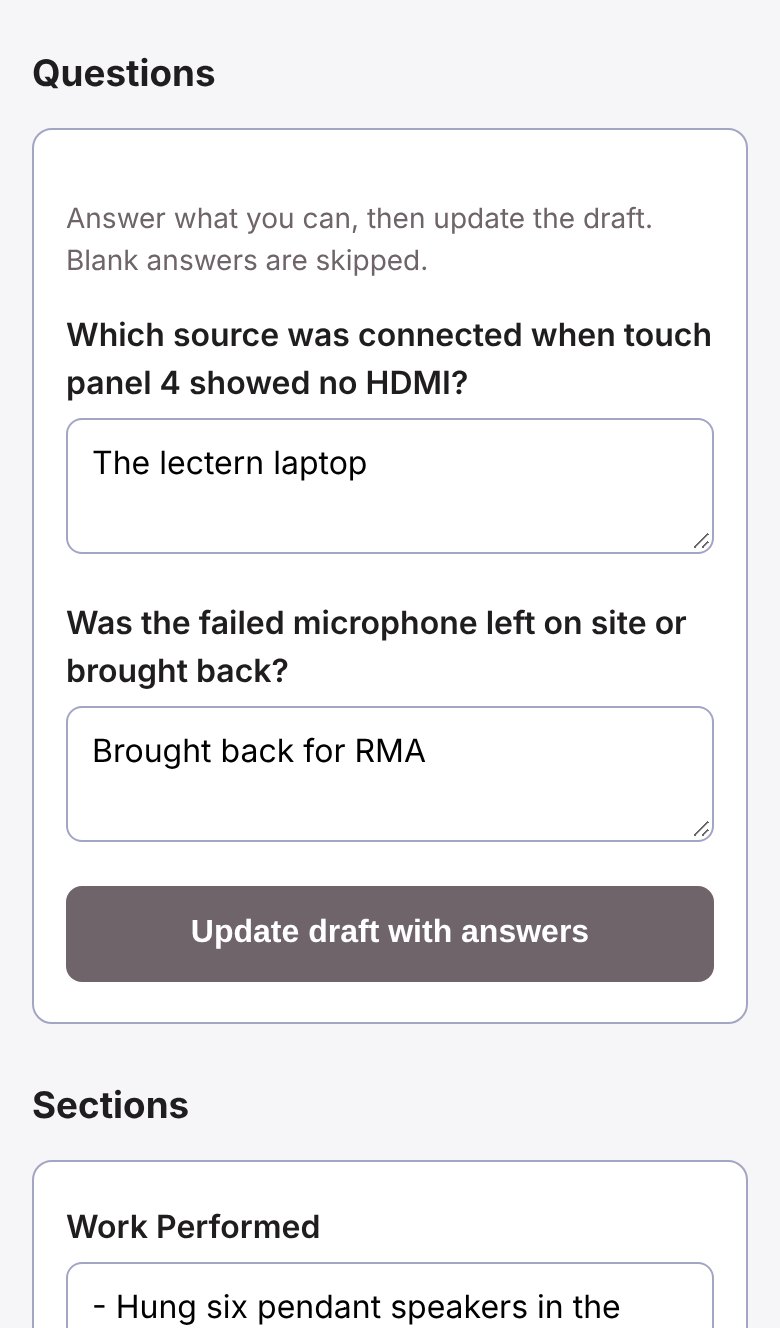
Answer what's unclear
The AI sorts your notes into your company's sections and asks a few questions where something's missing. The less experienced the tech, the more it asks; seasoned techs barely get any.
-
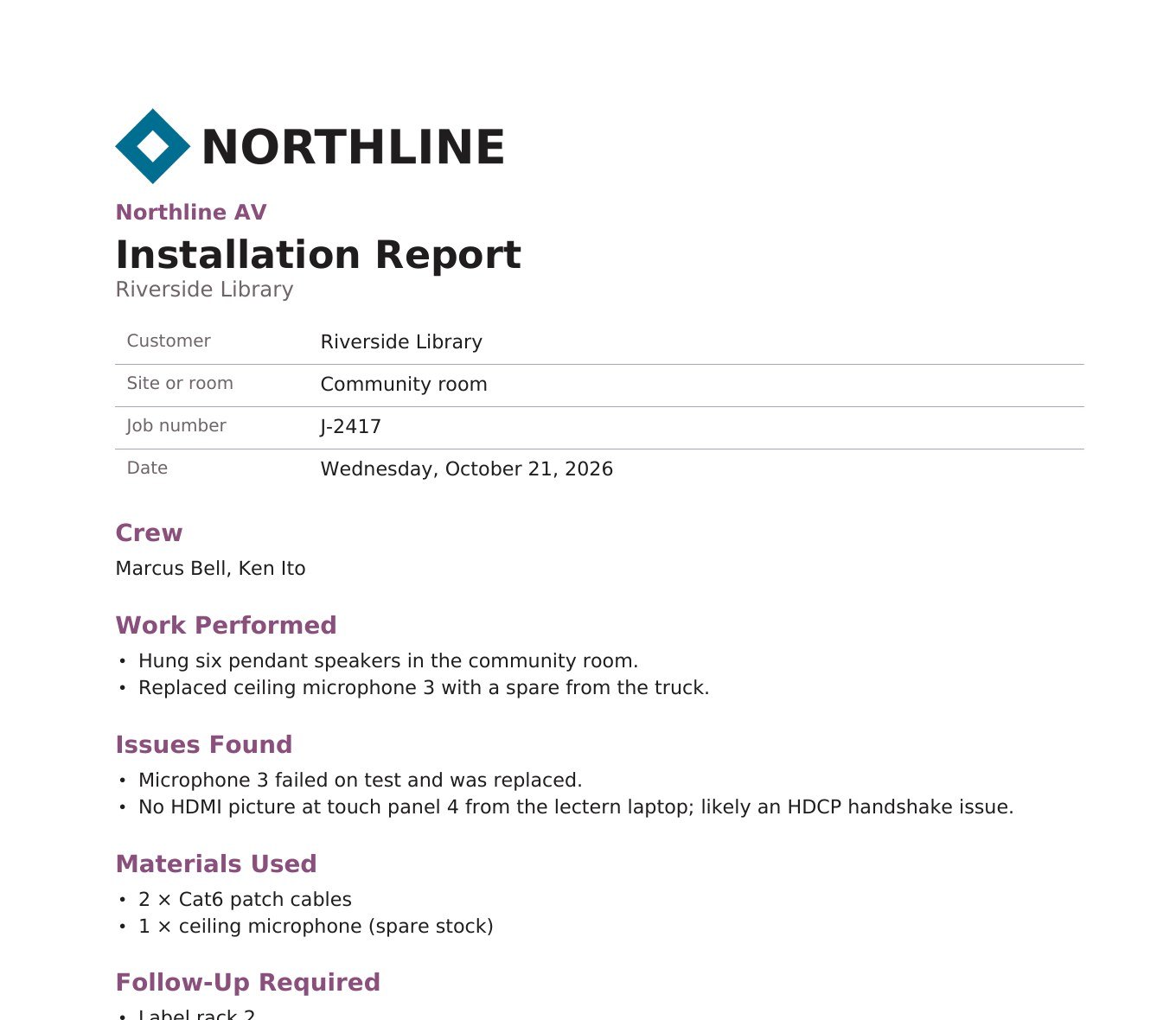
The office approves and sends it
An org admin reviews the note, then downloads a PDF or copies an email with your logo. Reports are named for the work: Installation Report, Commissioning Report, or Project Report when a job mixes them. The internal version has hours and the tech's original notes; the customer version leaves them out.
Read the user guide A step-by-step walkthrough with screenshots, for techs, team admins and one-person shops. PDF, 17 pages.
Made for how AV crews actually work
- Crews and hours
- The lead lists who was on site, each with their own start, end and lunch. Overnight shifts add up correctly.
- Who did what
- Turn on job titles and skills when your team needs them. Each person's work is tagged on a note, and the report gets a section per kind of work.
- Job-day comparison
- Every note and everyone's hours on one job number for a day, with gaps over 15 minutes flagged.
- Whole-job reports
- Every approved note on a job number in one report, day by day, for the customer or with everyone's hours for the office.
- Installs and live shows
- Installers, programmers and commissioning techs can each have their own sections. Live crews get a ready-made Show Report: load-in, show notes, issues, strike, and gear left or missing.
- Job photos
- Shrunk on the phone, location data removed, and exported each week in a folder per job.
- Search
- Find any note by customer, job number, words in the report, or job date range.
- Always up to date
- New notes and approvals show up without a reload, with phone notifications for the people who need them.
- Take it with you anytime
- An org admin can download everything in one zip: every note, report PDFs, hours, messages and photos, in files that open without the app.
Built for the office, too
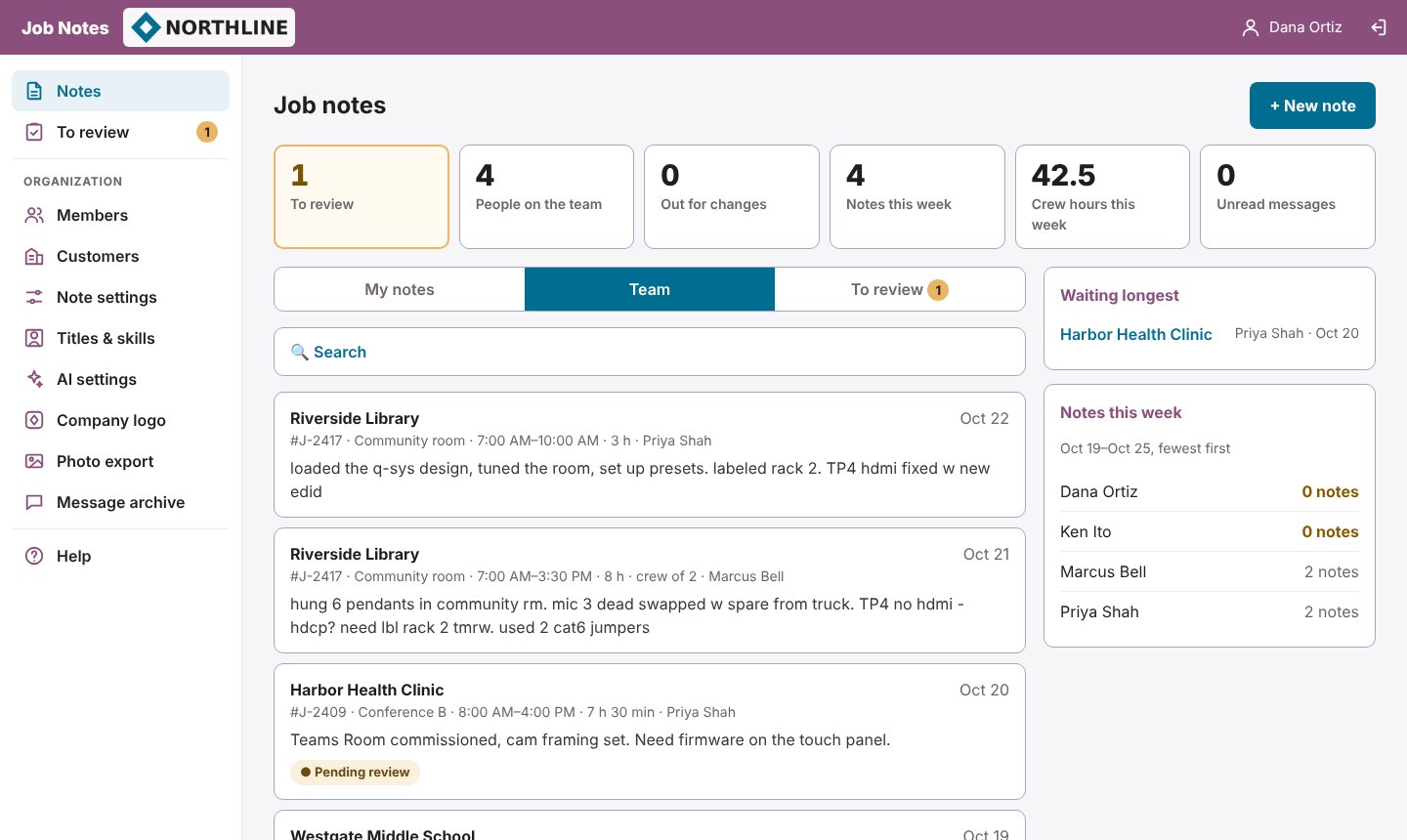
- A dashboard at a glance
- What's waiting for review, crew hours this week, the note waiting longest, and who hasn't written one yet. Techs get a simple phone view.
- Permissions per admin
- Choose who can manage the team, manage other admins and change settings (in Zappy AV), and who approves notes.
- Nothing half-finished goes out
- Notes can be required to have a formatted report before they're approved, and approvers can reopen one that was approved by mistake.
- Your company's look
- Your logo in the app, on PDFs and in emails, and report titles your way: "Project Report", "Job Report" or your own.
- Team notes, or just their own
- Decide for each member whether they can read the team's approved notes.
Your notes stay yours
- Use your own AI account (OpenAI, Anthropic, Google Gemini or a compatible service), or no AI at all. Keys are stored encrypted and never shown again.
- Org admins choose which AI services their team may use, and can share one company key with everyone.
- Photos have GPS and camera details removed before they're stored.
- The service's admin console shows company names and counts, never your notes, photos or messages.
Join the waitlist
Job Notes isn't open to new teams yet. Join the waitlist and we'll email you when there's room, starting with small AV teams: integrators, service companies, live-event crews and independent techs.
Your company already uses Zappy AV? Sign in; your org admin adds you there.
Opens an email to zappyav@gmail.com: tell us about your team.